Blog

Luke MacNeil and Laura Cenedella Workshops Sat Apr 24 2020

Our Saturday, April 25th, 2020 lineup is amazing! Set your alarm and enjoy a day of relaxing creativity! Free!

Luke MacNeil 10am – 1pm

ONLINE VIRTUAL ON FACEBOOK!

Luke is absolutely amazing with his talents with Photoshop, Lightroom, and Affinity. Come on by and watch his 3-hour workshop on all sorts of cool techniques and tips. Ask him questions live.

One of the fun things he’ll cover is how to create this awesome dispersion technique. Add some fantasy to your images!

Let us know what else you’d like him to talk about!

Hang out and chat, work along with him, and enjoy your Saturday morning!

Ask with any questions 🙂

https://www.facebook.com/luke.macnei1

Laura O. Cenedella 1pm – 3pm

ONLINE VIRTUAL ON FACEBOOK!

Come join Laura in her studio for an amazingly fun paint session! You can just watch and chat or you can paint along! Use oil paints or acrylic paints, your choice. This session is all about the relaxing palette knife style. With this, you’re moving thick sections of paint around. You don’t need a palette knife. You can use a straight-edged kitchen knife, a credit card, or anything else that is reasonably thick. Be creative!

Supplies:

Artist Oil Color and Acrylic Artist Color or Comparable:
white, yellow ochre, light yellow, red, blue

· Grey Pad Disposable Paper Palette/Plate anything
· oil: Impasto Mediums/ Walnut oil/ drying medium or Acrylic: impasto medium
· Mineral spirits/ Water for acrylic
· Paper towels
· Brushes for Oil or Acrylic Painting
· A can or jar for mineral spirits/water
· A bag for trash
· A clip to clip your trash bag to your easel or tripod
· An easel or paint box
· Canvas Artist Board or Paper

Anything else you may be comfortable to use.

Ask with any questions. Free, open to the public, and relaxing fun!

Laura’s event runs here:
https://www.facebook.com/Laura-O-Cenedella-269143975260/

Virtual Online Art Lessons with Luke MacNeil Dennis Smith and Laura Cenedella 4/18/2020

FREE Virtual Online Art Lessons!

Saturday April 18, 2020

In the morning from 10-12 Luke will present a fascinating look at different ways to create art – even “paint” – using your computer. He’ll explore Affinity, a software program that lets you paint with your computer. It has a free 90-day trial so you can test it out.

From 12-1 Dennis Smith will show us how to use GarageBand on an iPad. This amazing software lets you create your own musical background for your painting videos, or just for fun.

From 1-3 talented artist Laura O. Cenedella will do a live painting session, showing you how to paint a beautiful forsythia still life with watercolors, pen and ink. Perfect for spring! You can paint with any medium you want, of course. You’ll get to see her at-home studio and ask questions! It’ll take place on her Facebook page.

Join us for a day of fun and creativity!

Morning Session Location with Luke MacNeil:

https://www.facebook.com/luke.macnei1

Midday session location with Dennis Smith:

https://zoom.us/j/92251198736

Afternoon Session Location with Laura Cenedella:

https://www.facebook.com/Laura-O-Cenedella-269143975260

Creating One-Minute Time Lapse Videos

Making one-minute time lapse videos is an incredibly useful skill to learn. Sure, it’s lovely to have that 20-minute or 30-minute narrated walkthrough of how to paint something. But then it’s also very helpful for marketing to have a one-minute time lapse version, start to finish.

The one-minute video version can then be posted on Instagram, Twitter, and TikTok – all platforms that have a short length limit. You can use those other feeds to catch viewers’ attention and then direct them to YouTube or Facebook or wherever else you have the full length video posted.

Here’s how to do this in Adobe Premiere. If you’re using another software package, let us know what it is and we’ll help you figure out the steps.

Adobe Premiere

Open up your video file in Adobe Premiere. You probably already have it in there from making the full length video. For this short version, don’t bother with any title screens or anything else. You just want the video itself.

Click on the video-audio pairing to select it. Right-click and unlink the audio-video. Click OFF the video-audio so they are unselected. Then click just on the audio track. Delete it. Otherwise you’ll get chipmunk-audio when you shrink the time.

Right-click on the video track. Go into Time Stretch. You want the number to be BIGGER THAN 100 to speed it up. If your clip is 10 minutes and you want it to be 1 minute, change that 100 to 1000. See what the time is. If it’s still longer than 1 minute, increase that 1000 slowly until you get under 1 minute.

For YouTube / Facebook – Publish/Share, Computer, MPEG, and I use HDTV 1080 24p. The file it makes will be great for those two platforms.

For Instagram / Twitter / TikTok – Publish/Share, Mobile, iPad, iPad widescreen high quality. This is the file format those platforms use. When loading onto TikTok make sure you rotate your video on the first screen so it fills the window.

Ask with any questions!

Live Streaming Artist List – Watch and Learn!

It can be rough if you’re stuck inside your house without access to your normal routine. Artists around the world are providing live-streaming feeds from their home studios, letting us explore creativity and learn more about their styles!

These are just a few options – let us know if there are more we should add in!

Tony DiTerlizza fantasy art and faeries – https://www.facebook.com/TonyDiterlizzi

Streamline Art – variety of traditional artists for portraits and still life – https://www.facebook.com/StreamlineArtVideo/

Laura O Cenedella – coastal scenes and still life – https://www.facebook.com/Laura-O-Cenedella-269143975260

Luke MacNeil – computer tools like Lightroom, Photoshop, and Procreate – https://www.facebook.com/luke.macnei1

Mo Willems – children’s book illustrator – https://www.youtube.com/playlist?list=PL14hRqd0PELGbKihHuTqx_pbvCLqGbOkF

Peter H. Reynolds – children’s book illustrator – https://www.facebook.com/PeterHamiltonReynolds

Jarrett J. Krosoczka – children’s book illustrator – https://www.youtube.com/studiojjk

Virtual Online Art Lessons with Luke MacNeil and Laura Cenedella 4/11/2020

FREE Virtual Online Art Lessons!

Saturday April 11, 2020

In the morning from 10-1 Luke will present a fascinating look at different ways to create art – even “paint” – using your computer. He’ll explore Procreate and Photoshop, two well-known programs that let you use different brushes, colors, and textures to create art right on your computer.

From 1-3 talented artist Laura O. Cenedella will do a live painting session, showing you how to paint a beautiful daffodil still life with oil paints. Perfect for spring! You can paint with any medium you want, of course. You’ll get to see her at-home studio and ask questions! It’ll take place on her Facebook page.

Laura’s Supply List, if you want to match her painting:

Supply List:
Paint Colors:
Artist White
Titanium White
Yellow
Yellow Ochre
Red
Ultra Marine Blue
Palette
Drying Medium
Impasto Mediums/ Walnut Oil


Brushes- ( Oil Painting )
1 Inch
1/2 Inch
Round
Flat
Filbert
Rigger


Paper Towels
A Can or Jar for Mineral Spirits
A Palette Knife for Mixing or for Cleaning your Palette
A Bag for Trash
A Drop Cloth
An Easel or Paint Box
Canvas Artist Board
And Anything Else You are Comfortable Using.

Join us for a day of fun and creativity!

Morning Session Location with Luke MacNeil:

https://www.facebook.com/luke.macnei1

Afternoon Session Location with Laura Cenedella:

https://www.facebook.com/Laura-O-Cenedella-269143975260

How to Download your Facebook Live Video to your Computer

If you posted a video to Facebook live, there are a variety of reasons that you might not have any other backup copy available to work with. That means if you then wanted to load that same video onto YouTube or for other purposes, you’re stuck. Here is how to download that Facebook Live video from Facebook to your computer, so you can use it for whatever purpose you wish.

First, log into your Facebook account on a computer.

Go to your video area. Usually there is a ‘videos’ tab beneath your main profile banner image.

You should see “All Videos”. Click on the … on the right side.

Go to your Video Library.

Point to the Facebook Live video in question. As you hover over the video link, you should get an EDIT option to the right of the video title.

You’re now on the edit page for your Facebook Live video. There is another … area in the lower middle. Click on that … option.

You’ll now have an option to DOWNLOAD your video.

Save the video onto your local hard drive.

You now have a video to work with!

Note that if you originally uploaded your video from an old-school cellphone, the quality isn’t going to be great. That’s just a fact of life. So for example I use a Samsung 7 cellphone. When I download my Facebook Live video, the video I get is:

for a 3 hour video:
Frame size: 640 x 360
Frame Rate: 23 frames/second
Audio bit rate: 63 kbps / stereo
Audio sample rate: 24 kHz
total file size: 619mb

So again you can’t really blame Facebook for this. They were handling a live stream out of a cellphone. We’re fortunate that even works :).

So then the question is, how do you bring this MP4 file into something like Adobe Premiere in order to work with it?

It turns out that 23 frames/second caused problems for me while working with Adobe Premiere, my video editing software. My cellphone/Facebook Live combo created a “variable frame rate”. If you run into that sort of a problem, where the audio / video don’t remain synced properly, you want to download Handbrake:

https://en.wikipedia.org/wiki/HandBrake

This is FREE. It will let you convert the file from variable frame rate to a fixed 30 frames per second rate. This then imports perfectly into Adobe Premiere and other packages. You can then edit it like any other video file, add titles, and then save it for YouTube or other uses.

Let us know if you have any questions about downloading your live videos from Facebook Live!

Facebook Live from your Computer

Luke has written AMAZING step by step instructions on how to do Facebook Live from your computer. This involves “OBS” software which lets you mix in various microphones, cameras, etc. if you wish to. It has all sorts of features.

But you can also use just one webcam, one microphone, and do a wonderful job.

Ask with any questions!

Thank you so much, Luke!

https://theuncannyvalley.net/2020/04/05/livestreaming-with-obs-and-facebook-live

Editing Video on your Cellphone with Adobe Premiere Rush

Many people are now shooting videos on their cellphones to then share on websites and social media. The entire process can be quick, easy, and fun.

What if you want to do some editing to your video, right on your cellphone? Add a title? Delete a section?

That’s where Adobe Premiere Rush comes in!

Bob Evans put together this easy, simple tutorial to get you started. Thanks, Bob!

If you’re just getting started with cellphone videos, here is our how-to on the basics.

Let us know what else you’d like to learn!

Virtual Online Art Lessons with Luke MacNeil and Laura Cenedella 4/4/2020

FREE Virtual Online Art Lessons!

Saturday April 4, 2020

In the morning from 10-1 Luke will present a great walkthrough of how to use Lightroom to enhance your photos. Now is the perfect time to expand your LIghtroom skills! Plus he’ll show you how to use your PC to run a Facebook Live session. It’s a bit trickier than using a cellphone, but Luke has it down to a science. And there’ll be live music, too! Amazing!

Luke will be doing this from his full home studio, which has amazing sound. So be sure to stop in and watch!

From 1-3 talented artist Laura O. Cenedella will do a live painting session, showing you how to paint this nautical scene with oil paints! You’ll get to see her at-home studio and ask questions! It’ll take place on her Facebook page.

Laura’s Supply List:

Supply List:
Paint Colors:
Artist White
Titanium White
Yellow
Yellow Ochre
Red
Ultra Marine Blue
Palette
Drying Medium
Impasto Mediums/ Walnut Oil


Brushes- ( Oil Painting )
1 Inch
1/2 Inch
Round
Flat
Filbert
Rigger


Paper Towels
A Can or Jar for Mineral Spirits
A Palette Knife for Mixing or for Cleaning your Palette
A Bag for Trash
A Drop Cloth
An Easel or Paint Box
Canvas Artist Board
And Anything Else You are Comfortable Using.

Join us for a day of fun and creativity!

Morning Session Location with Luke:

https://www.facebook.com/luke.macnei1

Afternoon Session Location with Laura Cenedella:

https://www.facebook.com/Laura-O-Cenedella-269143975260

Posting a Premiere Video on Facebook

When you post a video on Facebook with a premiere status, what does that mean? How is that different from a standard Facebook video?

These simple how-to instructions will get you on the right path!

First off, you need a video to post. Be sure to read our simple step-by-step instructions on how to shoot a video with your cellphone. It’ll get you started so you can test this out.

Once you have a video file ready, it’s time to learn about the Premiere option in Facebook.

What is a Premiere Video?

The concept of a premiere video is that it “becomes visible” at a specific date and time. Think of it like an award ceremony. Lots of people tune in at 8pm EST at a specific date to see it at its very first showing. They want to all be part of that initial showing. After that, lots of people can re-watch it endlessly. So the video is available long term for those later viewers. It has all the same features as a ‘normal’ video. Its special bonus is that it had the premiere launch when it very first was shown to the public.

You pre-load your premiere video ahead of time. Let’s say a video was going to go live on May 1 at 8pm. I could post the video into the systems on April 28th so everything was set. I could schedule it for a release time of May 1 at 8pm EST. I now have a URL I can send out to everybody letting them know where that premiere is going to be held. That means I can get a lot of publicity for that URL. People going to the URL will see the count-down clock of how long until the video is visible.

This makes it easier for people to all get to the video for its launch.

A Premiere Video lets people chat and talk about the video while it’s playing that first time. It makes the event a community event. And then, after that first playing, the video is available for anybody to watch and rewatch.

In order to set up a premiere video, you need the video to be complete. So be sure to look at our other how-do that talks about how to make the video in the first place.

Posting a Premiere Video on Facebook

Here are the steps for posting a Premiere video. Unlike posting a regular video, which is simply done as a traditional post, there are a few extra steps to putting a video live in premiere status.

First, on a computer, go to your main YouTube page. These examples use the BVAA Facebook fan / business page, but you can do this on a personal page as well. Look for a link for your video area. There might be a word “video” beneath your main banner. It might be hidden under the “more” tab. Different layouts have different options visible. Find that video area.

Once you’re in your video list, click the “…” area to get to the full video library listing.

On your video listing page, you’ll see a summary of all of your videos and their views. Any video you ran initially as a ‘live’ video will have a little video camera icon in its status column. At the top, there should be a link to create a new premiere video.

When you click that link, you’ll get a prompt to select your video on your hard drive. Browse to find your video, and start it loading up. While it is loading, you can edit its details.

On the first of the two tabs, put in a title that has key words so you’re found when people search on your topic. Have it be meaningful at the same time. The description can hold a more complete explanation about your video. Give it a few ‘tags’ – i.e. key words – to help it get found.

You can see in the lower left that this video is still loading.

Click ‘Next’.

This second page sets the premiere start date and time for this video. You can set any future date. YOUR VIDEO WILL TAKE TIME TO LOAD. Don’t try to do this at the last minute with only 10 minutes to spare. It could easily take the video a half hour to load in and then another 10 minutes after that for internal processing. Load your video up at least two hours ahead of time, to be ready for the premiere. This gives you time to publicize that the launch is coming.

You can set a featured image to go with your premiere, if you want. If that’s tricky for you to figure out, don’t worry about that. You don’t need it. I just used a screenshot from the video.

You can ‘scroll down’ in both the left-hand and right-hand areas.

This area is ALL OPTIONAL. If you want to make playlists to organize your videos into groupings, you can do that. You don’t have to. If you want to cross-promote this video on other pages you run, you can do that, too. You don’t have to. All you need to set is that top-area date and time.

When you’re ready with these details, click PUBLISH in the bottom right.

Your video will continue loading and then processing until it is ready.

You’ll see an entry show up on your video listing, showing this video as preparing to be posted in a premiere state. In the status area there will be a “clapboard” showing this is a scheduled premiere event. If you point your mouse at that clapboard icon, a helpful note will show up saying “Scheduled premiere”.

When the video is processed and fully in the Facebook system, Facebook will make a promotional post for you, touting this upcoming premiere of your new video. It’ll have the launch date in red beneath the image you chose to represent your video. It’ll show your description and title. It’ll encourage people to come watch the video during this special premiere period.

This right here is a key benefit of the premiere system. You now have a promotional post you can share, share, share with family and friends. They can share it for you. This promotion can be seen by thousands of people. Everyone will be reminded by Facebook it’s coming up, encouraged to attend, etc. etc. It becomes an “event”. People know exactly where to go to see the video at that launch date and time.

Note that the text under the image says “Tune in to watch live”. That’s a bit confusing, and both YouTube and Facebook have this same issue. The video is NOT LIVE in the sense of the artist being there, live, doing the actions. It is a pre-recorded video. I suppose the viewer is watching the premiere “live” as it premieres, but that is a confusing way of expressing it. Just know, as an artist, that you are NOT live in this situation. This is a pre-recorded video you posted and is all set. The only component of this that you do live is that you can chat live with guests in the comment area while the video is running on this very first premiere launch.
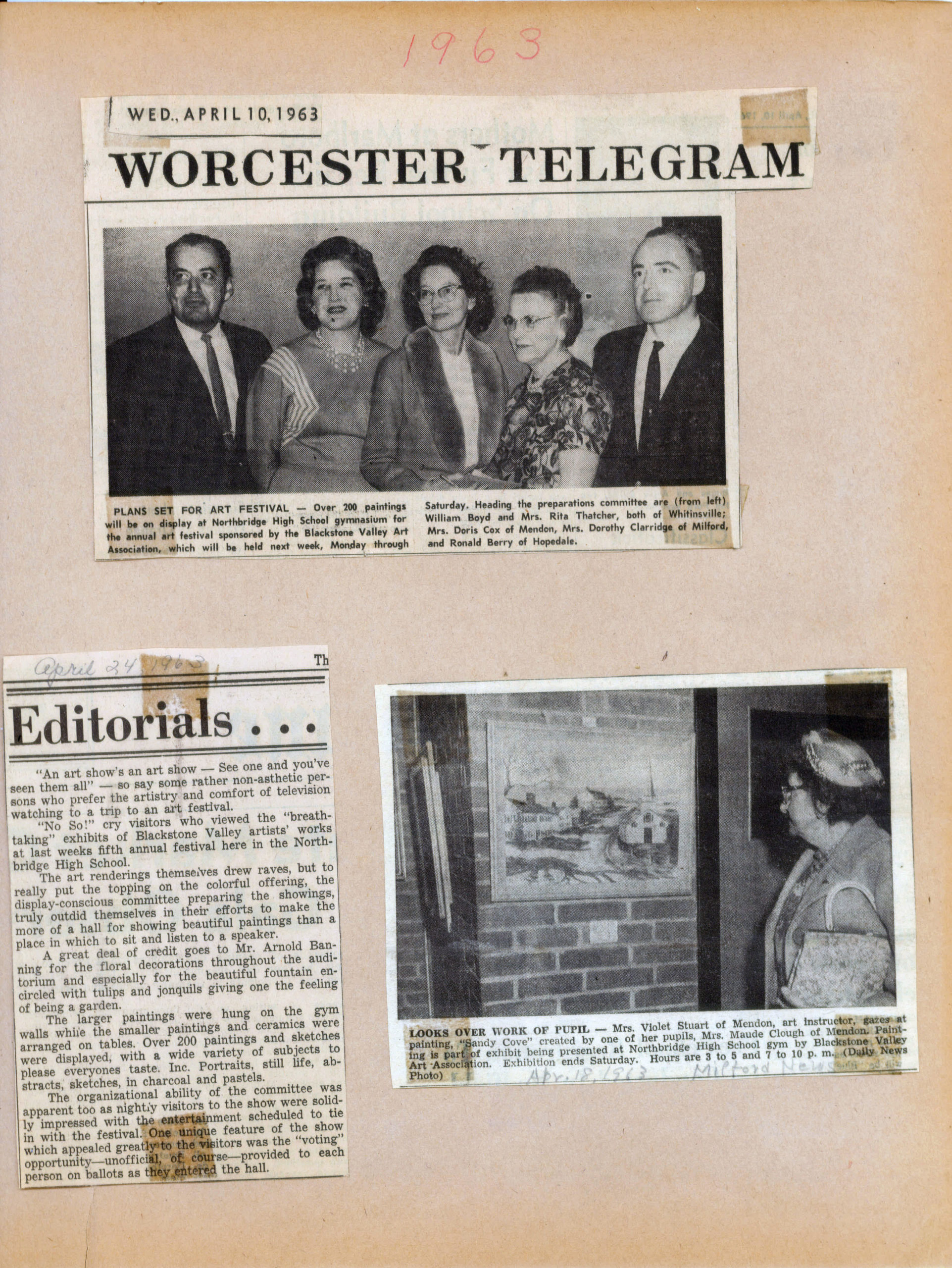
When the premiere starts, every link to the video now changes to have a watch live button. The screen area itself says that the premiere is live. Again, to clarify, YOU ARE NOT LIVE. The video is running. I know it’s confusing.

This is the view from someone watching the video. It says in the top area that this is a PREMIERE. Note that there is no sense at all of how long this premiere is going to last. So it’s a good idea to mention to people how long this is going to go on for.

People can comment while the premiere is running. All of those comments are saved with the video, so people watching later can see them.

This premiere was run on the BVAA page. I shared it to my personal Lisa Shea page to let family and friends know it was going on. Here is the post on the Lisa Shea page. Note how it also lets people the video is now in its premiere state and can be watched.

This is further in the premiere process. The turtle is still being painted. You can see the comments being made on the right-hand side. It still says in that top left area that this is a PREMIERE.

Then the video ends. It just stops. It doesn’t “tell you” the video is done. The PREMIERE red alert in the top left goes away, but that’s it. So it’s good to have something in your video itself saying goodbye or such.

Now that the PREMIERE aspect of this video is done, the video acts like any other video in your library. There’s now a post in your timeline about this video including all the comments made during that premiere session.

If you go to the videos associated with the BVAA account, this video is now simply one of those videos, available for watching.

Ask with any questions.
Be sure to also read about how to post your video as a Premiere video on YouTube. It’s good to have your video in both systems, to reach both audiences.
As a note, there is video editing software created by Adobe called Adobe Premiere. That is wholly separate from the concept that YouTube and Facebook have of “launching a video as a premiere”. They just happen to be the same name.